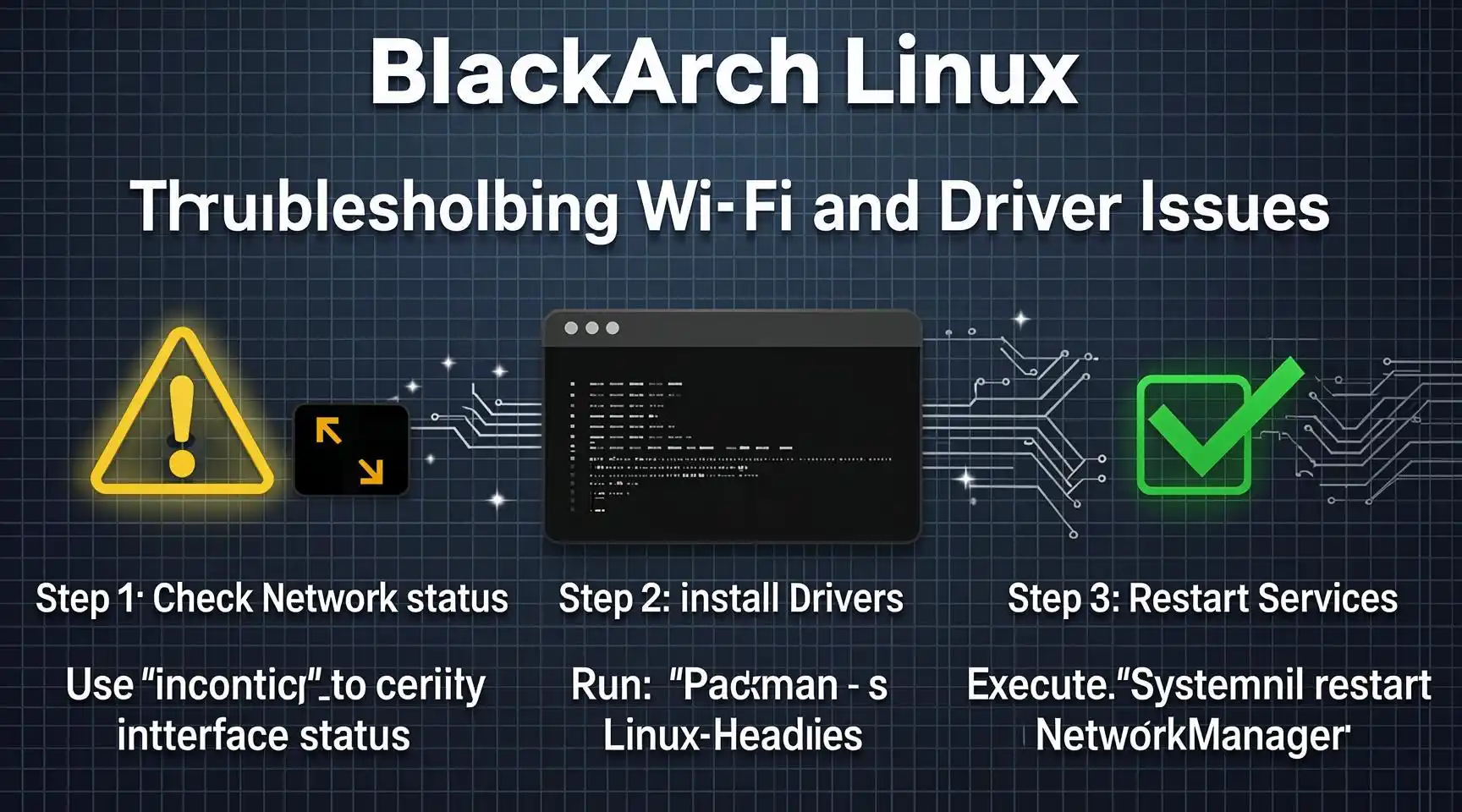
How to Fix Wi‑Fi and Driver Issues on BlackArch Linux
(A comprehensive guide for security‑focused Linux users)
TL;DR: Run lspci/lsusb → identify the chipset → install the appropriate driver (pacman -S <driver‑package> or git clone → make && sudo make install) → reload modules → configure NetworkManager or wpa_supplicant.
Table of Contents
- Why Wi‑Fi Issues Are Common on BlackArch
- Pre‑flight Checklist
- Identify Your Wireless Adapter
- Install the Correct Driver
- Configure Network Services
- Troubleshooting Tips & Common Pitfalls
- Bonus: Keeping Drivers Up‑to‑Date
- Conclusion
- Disclaimer
- Why Wi‑Fi Issues Are Common on BlackArch
BlackArch is a penetration‑testing spin of Arch Linux. While its rolling‑release nature gives you the latest tools, it also means:
- Kernel updates can break out‑of‑tree drivers.
- The default installer doesn’t ship proprietary firmware to keep the ISO lightweight and legally clean.
- Many security tools rely on monitor mode or packet injection, which requires specific driver patches.
Understanding the root cause—kernel‑driver‑firmware mismatch—helps you troubleshoot faster.
- Pre‑flight Checklist
| ✅ Checklist | Details |
| Root Access | Most driver operations need sudo. |
| Internet (Wired) Connection | Needed for package installation. |
| Updated System | sudo pacman -Syu (or use yay for AUR). |
| Backup /etc/modprobe.d | sudo cp -r /etc/modprobe.d /etc/modprobe.d.bak. |
Tip: If you’re on a laptop with a dual‑boot, temporarily disable Secure Boot in BIOS/UEFI. BlackArch’s kernels are not signed for Secure Boot.
- Identify Your Wireless Adapter
Open a terminal and run:
# For PCI/PCIe adapters
lspci -nnk | grep -iA3 net
# For USB adapters
lsusb -v | grep -iA2 ‘Wireless’
# General hardware overview (optional)
hwinfo –netcard
What you’re looking for:
- Manufacturer (e.g., Intel, Broadcom, Realtek, Atheros)
- Chipset model (e.g., Intel Wireless-AC 9560, Realtek RTL8821CE)
- Kernel driver currently in use (if any).
Example output:
02:00.0 Network controller [0280]: Intel Corporation Wireless-AC 9560 [8086:02f0]
Subsystem: Intel Device [8086:5035]
Kernel driver in use: iwlwifi
- Install the Correct Driver
4.1. Drivers from the Official Repositories
Most common chipsets have a ready‑made package:
| Chipset | Pacman Package | Command |
| Intel (iwlwifi) | linux-firmware (already installed) | sudo pacman -S linux-firmware |
| Broadcom (broadcom‑wl) | broadcom-wl | sudo pacman -S broadcom-wl |
| Realtek (rtw88) | rtw88-firmware | sudo pacman -S rtw88-firmware |
| Atheros (ath10k) | ath10k-firmware | sudo pacman -S ath10k-firmware |
After installing, reboot or reload the module:
sudo modprobe -r iwlwifi && sudo modprobe iwlwifi
4.2. Drivers from the AUR (Out‑of‑Tree)
Some adapters need patched drivers for monitor mode/packet injection.
# Example: Realtek RTL8821CE (dual‑band)
yay -S rtl8821ce-dkms-git
The -dkms variant automatically rebuilds the module on kernel upgrades.
4.3. Build from Source (When No Package Exists)
- Clone the repository (replace with the correct URL).
- git clone https://github.com/aircrack-ng/rtl8812au.git
- cd rtl8812au
- Compile and install
- make
- sudo make install
- sudo modprobe 8812au
- Add to DKMS (optional but recommended).
- sudo dkms add ./ # inside the source folder
- sudo dkms build rtl8812au/5.12.4
- sudo dkms install rtl8812au/5.12.4
- Configure Network Services
BlackArch ships NetworkManager by default, but you can use wpa_supplicant or iwd if you prefer.
5.1. Using NetworkManager (NM)
# Enable & start the service
sudo systemctl enable NetworkManager.service
sudo systemctl start NetworkManager.service
# List available Wi‑Fi networks (requires nmcli)
nmcli device wifi list
# Connect to a network
nmcli device wifi connect “SSID_NAME” password “mySecretPass”
5.2. Using wpa_supplicant (minimal)
# Generate a config file
wpa_passphrase “SSID_NAME” “mySecretPass” | sudo tee /etc/wpa_supplicant/wpa_supplicant.conf
# Start the supplicant on wlan0 (replace iface name)
sudo wpa_supplicant -B -i wlan0 -c /etc/wpa_supplicant/wpa_supplicant.conf
# Obtain IP via DHCP
sudo dhcpcd wlan0
5.3. Enabling Monitor Mode (Essential for Pen‑Testing)
# Check interface capabilities
sudo iw list | grep -A10 “Supported interface modes”
# Set monitor mode (replace iface)
sudo ip link set wlan0 down
sudo iw dev wlan0 set type monitor
sudo ip link set wlan0 up
If you get Operation not supported, you likely need a patched driver (see Section 4.2/4.3).
- Troubleshooting Tips & Common Pitfalls
| Symptom | Likely Cause | Fix |
| No wireless interface appears (iw dev empty) | Driver not loaded or missing firmware | `sudo dmesg |
| NetworkManager reports “device is unmanaged” | Interface is blacklisted in /etc/NetworkManager/conf.d/ | Remove or comment-out the relevant unmanaged-devices line |
| Connection drops after kernel update | DKMS driver not rebuilt | sudo dkms autoinstall or reinstall AUR driver |
| Monitor mode works, but packet injection fails | Incomplete driver patch (e.g., rt2800usb) | Use a driver from the aircrack‑ng repo designed for injection |
| modprobe: FATAL: Module not found | Typo or wrong module name | Verify with `lsmod |
Useful One‑Liners
# Show loaded wireless modules
lsmod | grep -E ‘iwlwifi|rtw|ath|wl|mac80211’
# Flush old network configs (helpful after driver changes)
sudo rm -rf /var/lib/NetworkManager/* && sudo systemctl restart NetworkManager
# Force reload kernel module with debug output
sudo rmmod iwlwifi && sudo modprobe iwlwifi debug=0x1
- Bonus: Keeping Drivers Up‑to‑Date
- Enable automatic system upgrades (recommended for BlackArch).
- sudo pacman -Syu
- Watch the AUR for driver updates (e.g., yay -Syua).
- Add a weekly cron job to check for DKMS rebuild failures:
- 0 3 * * 0 root /usr/bin/dkms autoinstall > /var/log/dkms-autoinstall.log 2>&1
- Subscribe to the BlackArch mailing list for announcements on kernel‑driver compatibility.
- Conclusion
Wi‑Fi and driver problems on BlackArch are usually a matter of matching the right kernel module, ensuring the proper firmware is present, and configuring the network manager of your choice. By:
- Identifying the chipset,
- Installing (or building) the correct driver,
- Reloading modules and configuring NetworkManager or wpa_supplicant,
you’ll have a stable wireless connection ready for both everyday use and advanced security testing.
If you still hit a wall, remember that the Arch Wiki and BlackArch Forum are treasure troves of community‑tested fixes. Keep your system updated, stay patient, and happy hacking!
- Disclaimer
The information provided in this article is for educational and informational purposes only. While it details how to install and configure wireless drivers on BlackArch Linux, the author and publisher are not responsible for any damage to hardware, loss of data, or legal consequences that may arise from misuse of the instructions. Users are encouraged to verify compatibility with their specific hardware and to comply with all applicable laws and licensing agreements, especially when using tools for penetration testing.
Keywords
- BlackArch Wi‑Fi fix
- Linux wireless driver installation
- Monitor mode on BlackArch
- AUR Wi‑Fi driver
- DKMS kernel modules
- NetworkManager troubleshooting
- Realtek RTL8812AU build
- Broadcom wl driver Arch
- Intel iwlwifi firmware
- Pen‑testing wireless setup
Hashtags
#BlackArch #LinuxNetworking #WiFiTroubleshooting #DKMS #AUR #NetworkManager #PenTesting #OpenSource #CyberSecurity #LinuxTips
Have any thoughts?
Share your reaction or leave a quick response — we’d love to hear what you think!
-
 0
0
-
 0
0
-
 0
0
-
 0
0
-
 0
0
-
 0
0